


Genius Fax
4.9663.00 Reviews
App Specs
- Version
- 1.12.0
- Updated On
- License
- Free
- Downloads
- 100,000+
- Developer
- The Grizzly Labs
- Categories
- Business
- Platform
- Android
Screenshots
 Analysis by AppCompare
When a paper form has to reach an office that still accepts documents by fax, the usual choices are inconvenient: find a fax machine, ask someone at work to send it, or look for a phone-based service. That is the narrow problem Genius Fax is built to solve. I find it most useful as an occasional bridge between a document on my phone and an organization that has not moved on from fax, rather than as a replacement for a full office fax setup.
That distinction matters before you begin. A phone app can help you prepare and send a document, but it cannot make an unreadable photo legible or guarantee that the receiving office will process what arrives. The best results come from treating the app as one step in a paperwork workflow: check the form, make a clean digital copy, confirm the destination number, send it, and keep an eye on the outcome.
From a document on your phone to a completed fax
I’d use this section to follow one document all the way from its starting point on paper or on a phone to the moment it is handed off for faxing. The key practical choice is to prepare and check the pages before entering the destination, so a rushed send does not turn a simple task into a second round of paperwork.
Starting with the right paperwork
A realistic example is a form that needs to be returned to a clinic, insurer, school, or another office that asks for fax rather than email. If the document is already on your phone, you can select it instead of finding a printer. If it is on paper, the app’s camera-scanning option gives you a way to capture it on the spot. That is especially handy when you are away from home and the deadline is close.
Before opening the send screen, I would check that every page is present, the writing is readable, and any required signature is actually on the document. A scan that looks fine on a bright phone display can be harder to read in a printed or faxed copy, particularly if the page is skewed or the ink is faint. Taking a moment to review the file is a more useful safeguard than rushing straight to the recipient field.
This is also a good point to think about privacy. Forms may contain personal or financial information, so I would avoid scanning them in a public place where other people can see the screen, and I would double-check that I selected the intended document. The convenience of sending from a phone does not remove the need to handle sensitive paperwork carefully.
Preparing and sending without a desk machine
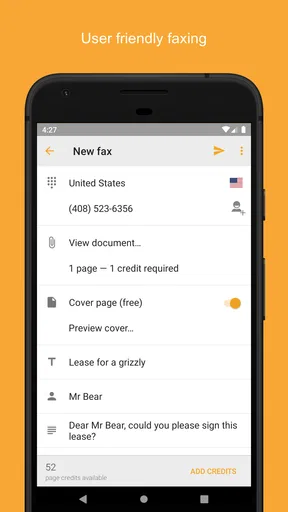
Once the document is ready, the workflow is straightforward: choose a file from the phone or scan the paper, enter the recipient’s fax number, and send. PDF support is useful because many forms are already distributed in that format, and keeping a document as a PDF can make it easier to review the pages as a single item before transmission. If you are scanning several sheets, check their order before sending; a complete but scrambled packet can still create a delay for the person handling it.
Worth Reading Before You Choose

EA SPORTS FC Mobile 26 Is a Bigger Football Game, but It Takes Time

Flipboard Shows What News Apps Must Do Beyond the Feed

Switching to Android Auto Means Rethinking Your Driving Routine

Google Calendar Makes a Crowded Week Easier to Manage

Ludo King Makes the Most of the Minutes Between Plans

Baby Panda World Brings Quick Play to Modern Phones, but Its Game Library Feels Busy
Entering the fax number is the step I would slow down for. A single wrong digit can send paperwork to the wrong destination or leave it undelivered, so it is worth comparing the number in the app with the one on the organization’s own instructions. If the paperwork has a cover sheet or a reference number, make sure those details are included in the document you are sending rather than assuming the recipient can identify it from the fax alone.
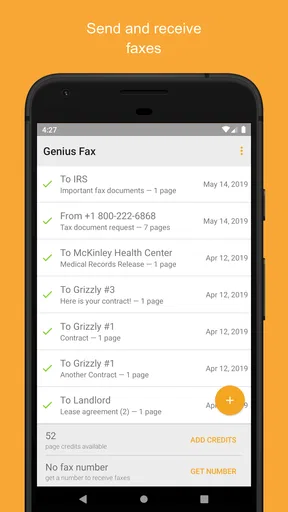
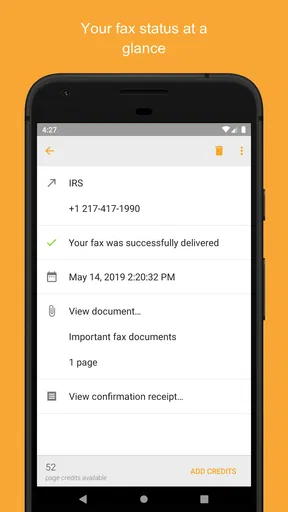
After sending, delivery notifications and the fax history give the process a useful paper trail. I would treat a status or confirmation as evidence about transmission, not as proof that a person has read, accepted, or acted on the form. For a deadline-sensitive submission, keep the original file and note the time you sent it; if the office needs confirmation of receipt, contact the office through its normal channel rather than relying on a delivery notice to answer that separate question.
Where the handoff can still take work
Genius Fax handles the phone-to-fax part, but it cannot remove every handoff. You still need the correct fax number, a document that is complete, and an organization prepared to receive it. Some offices may have their own requirements for cover pages, signatures, or page order, so I would follow the instructions that came with the form. When a recipient offers a secure online portal or accepts email, that route may be easier to track and less awkward than faxing.
It is also worth separating the act of sending from the cost of sending. The app is free to download, while in-app purchases range from $0.99 to $21.51 per item. Its pay-as-you-go approach can suit someone who faxes only now and then, since it avoids committing to a recurring plan, but frequent users should compare the per-use expense with a service or workplace setup they already have. I would check the in-app purchase options before relying on it for a large batch of documents.
Who is likely to find it useful
I would recommend this kind of setup to someone who occasionally has to return a signed form, send a document while travelling, or deal with an office that still requests fax submissions. It is particularly practical when the alternative is making a special trip just to use a machine. It can also be useful for a small business owner who needs an occasional outbound fax but does not want a physical fax machine taking up space.
It is less compelling for a person who sends faxes every day, needs a shared team inbox, or depends on a tightly controlled office workflow. In those cases, a dedicated business fax service or the organization’s existing equipment may be easier to manage. Likewise, if the recipient accepts a secure digital upload, I would generally choose that method for a clearer record and fewer steps. The convenience here is specific: sending an occasional fax from a mobile device, not managing every kind of document exchange.
On the app-store side, Genius Fax is a free Business app from The Grizzly Labs. It has a 4.8 average from around 3,000 ratings, with over 100,000 installs, and its content rating is Everyone. Those details help set expectations about its audience, but the more important question for me is whether faxing is a real need in your routine. If it is, the phone-based workflow is easier to justify than keeping a machine around for rare exceptions.
First Impressions
When I first opened Genius Fax, the design immediately caught my eye. It’s sleek and user-friendly, with a straightforward interface that doesn’t overwhelm you with options. The layout is intuitive – everything you need is just a tap or two away. For someone like me who appreciates simplicity, this was a big win.
Getting Started
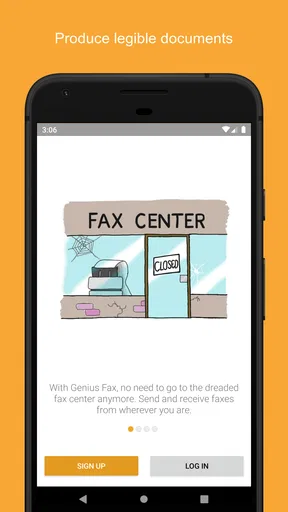
Setting up was a breeze. After downloading the app, I was prompted to create an account, which took mere moments. The app offers a quick tutorial to get you started, which I found helpful. For those who are not tech-savvy, the step-by-step instructions make it easy to understand how to send your first fax.
Sending a Fax
Sending a fax through the app was surprisingly straightforward. You can either upload documents from your phone or use the camera to scan them directly. This feature is particularly handy if you’re on the go and need to fax a document quickly. I tested it with a few different types of documents, and the quality was impressive.
The app supports multiple file formats, including PDF, which is a common requirement for many fax services. You simply select the document, enter the recipient’s fax number, and hit send. Genius Fax will give you a confirmation once it’s sent, which is a reassuring touch.
Features and Functionality
One of the standout features is the ability to track sent faxes. The app provides delivery notifications, so you know exactly when your fax has been received. This is great for peace of mind, especially if you’re sending something time-sensitive. The app also stores your fax history, which makes it easy to resend or review documents if needed.
Genius Fax offers a pay-as-you-go model, which eliminates the need for a subscription. You purchase credits that you use for sending faxes. This model is perfect for someone who doesn’t need to send faxes frequently but wants the option available without a recurring fee.
User Experience
I found the app to be very responsive, with no noticeable lag or crashes. The developers have clearly put effort into ensuring a smooth user experience. The customer support is also worth mentioning. They offer prompt responses and helpful solutions, which is always a plus in my book.
Room for Improvement
While Genius Fax ticks most boxes, there are a few areas that could use some polishing. For instance, while the pay-as-you-go model is great for occasional use, the cost per page can add up if you find yourself needing to fax frequently. A more economical bulk option could be a welcome addition.
Additionally, while the app supports a decent range of file formats, adding support for more could enhance its versatility. But these are minor quibbles in an otherwise well-rounded app.
Final Thoughts
Overall, Genius Fax is a solid choice for anyone needing a reliable way to send faxes from their phone. The app combines simplicity with functionality, ensuring that even the least tech-savvy among us can navigate it with ease. Its ability to send, track, and manage faxes without hassle makes it a valuable tool in any digital arsenal.
Whether you're a professional constantly on the move or just someone who occasionally needs to send a fax, Genius Fax is worth checking out. It’s like carrying a mini fax machine in your pocket, without the bulk and with all the modern conveniences.
When another route makes more sense
The app’s current version is 1.10.0 and it requires iOS 8.0 or later. That makes it worth checking compatibility on an older device before planning to depend on it for an urgent form. For a one-off fax, the practical test is simple: can your phone open the file, can you verify each page, and do you have the right recipient number? If any answer is no, fixing that first is better than discovering the problem after a deadline has passed.
My overall take is that this is a focused convenience, not a reason to fax documents that could be sent more simply another way. When fax is genuinely required, the app can spare you a trip to a machine and give you a record of what you sent. When fax is optional, a secure upload or email accepted by the recipient is often the cleaner choice. That is the trade-off I would keep in mind: use it to solve an actual fax need, and let the recipient’s preferred process guide the rest.
Pros
- Easy-to-use interface for quick navigation.
- Supports multiple file formats for faxing.
- Secure encryption ensures data privacy.
- Affordable pricing with flexible plans.
- No need for a dedicated fax machine.
Cons
- Limited free trial before subscribing.
- Requires internet connection to send faxes.
- Occasional delays in fax delivery.
- No option for phone support assistance.
- Limited editing features for documents.
FAQs for Genius Fax
What platforms is Genius Fax available on?
Genius Fax is available for both Android and iOS platforms, making it accessible to a wide range of smartphone users. Whether you're using an iPhone or an Android device, you can download the app from the respective app stores to start sending and receiving faxes right from your phone.
How secure is Genius Fax for sending confidential documents?
Genius Fax prioritizes the security of your documents by using encrypted transmission methods to ensure that your data is protected. This means that confidential information is safe from unauthorized access during the faxing process. However, it's always wise to use additional security measures, such as password protection for sensitive files.
What are the costs associated with using Genius Fax?
Genius Fax operates on a pay-as-you-go model, which means you only pay for the faxes you send. While the app itself may be free to download, there are in-app purchases for sending faxes. Prices vary depending on the number of pages and destination, so it's important to review the costs before sending.
Can I receive faxes with Genius Fax, and how does it work?
Yes, Genius Fax allows you to receive faxes. To do this, you'll need to obtain a fax number through the app, which may require a subscription. Once set up, incoming faxes are delivered directly to the app, allowing you to view, store, and manage them conveniently on your device.
Does Genius Fax integrate with cloud storage services?
Genius Fax offers integration with popular cloud storage services like Google Drive and Dropbox. This feature allows you to easily import documents from these services into the app for faxing. It enhances convenience by providing seamless access to your documents stored in the cloud, ready to be sent as needed.


